How to deploy React application to AWS Amplify (Amazon Web Services)?

In the previous article, I have described how to deploy react application to Google App Engine. In this article, we will see how to deploy react application to AWS Amplify.
Creating the React application
If you do not have an existing application, create one using the following command:
npx create-react-app react-aws-amplify
Pushing the code to GitHub
Before deploying the code to AWS Amplify, you need to host the code in a git repository like GitHub, GitLab, etc.
Create a git repository named react-aws-amplify at https://github.com/new, and run the following commands inside the project to push the code to GitHub.
git init
git add .
git commit -m "first commit"
git branch -M main
git remote add origin https://github.com/collegewap/test1.git
git push -u origin main
Creating AWS account
If you do not have an AWS account, create one using the following link:
https://portal.aws.amazon.com/billing/signup#/start
Deploying the code to AWS Amplify
Log in to the AWS Console and search for AWS Amplify:
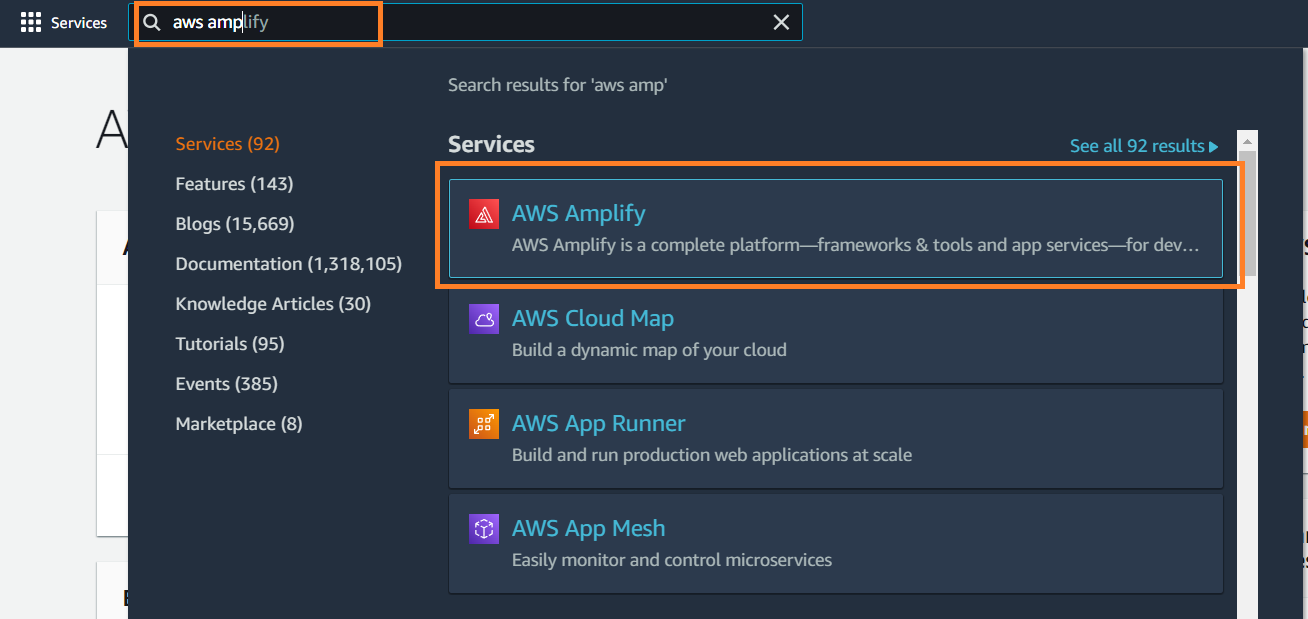
Select the first option from the search suggestions.
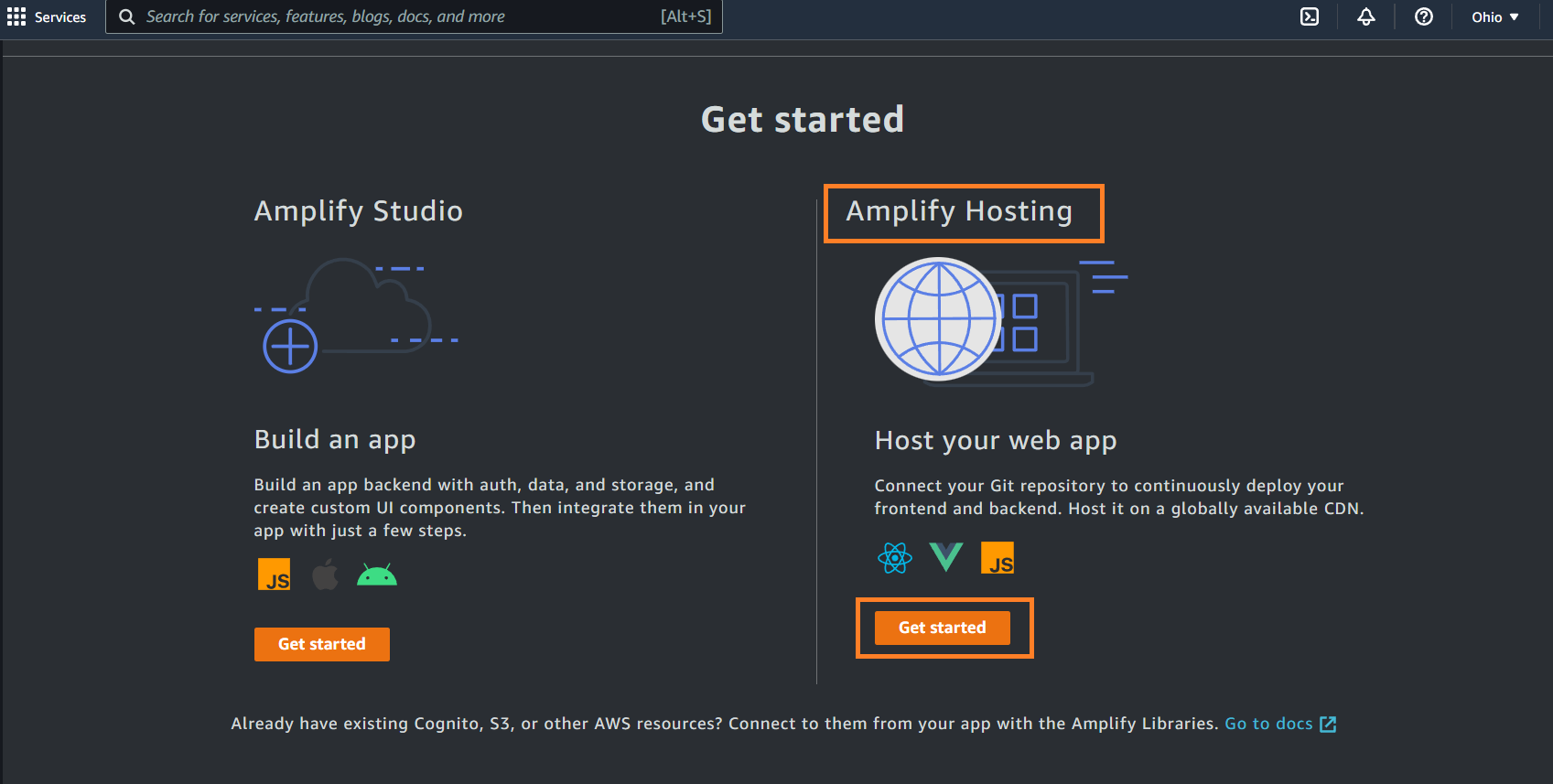
Scroll down and select Get Started under Amplify Hosting.
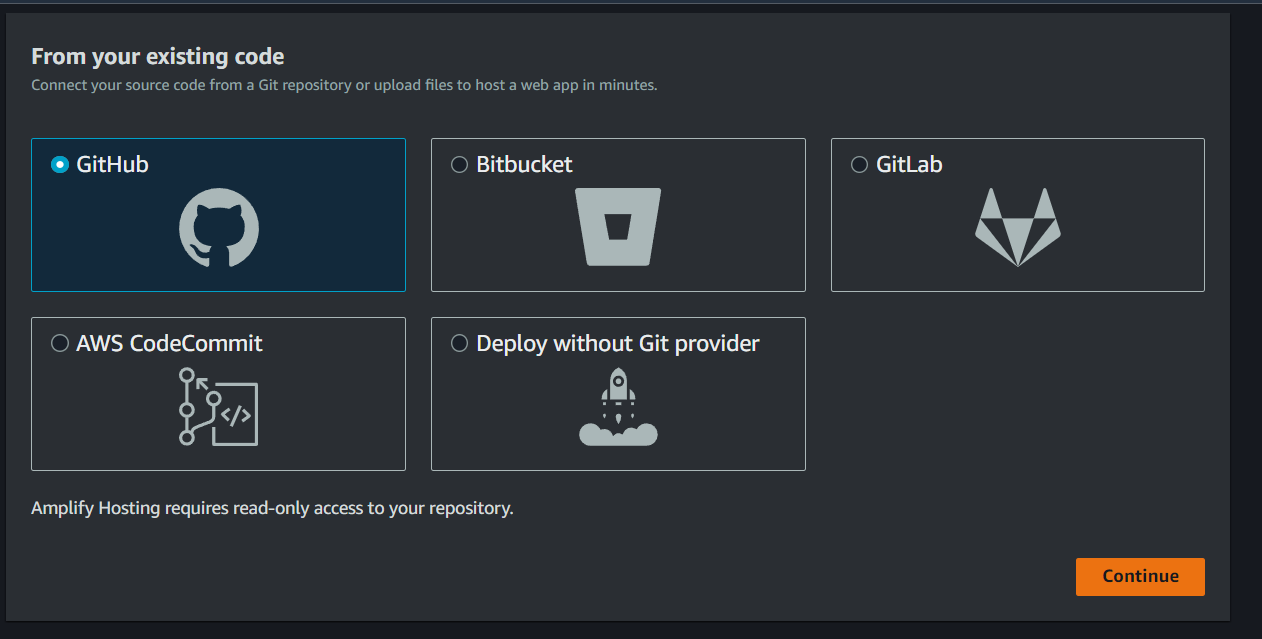
Select GitHub or any other Git provider and click on Continue.
Now you will be redirected to GitHub for authentication.
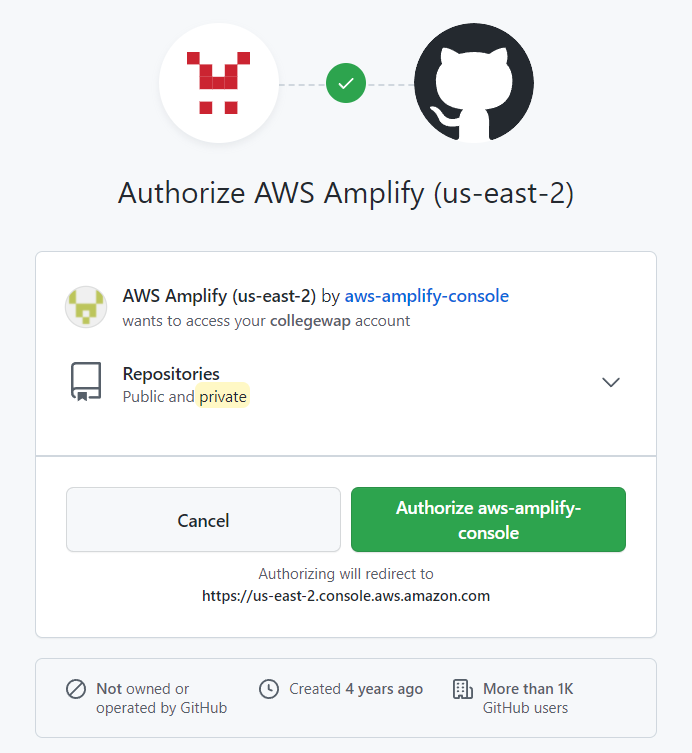
Click on Authorize.
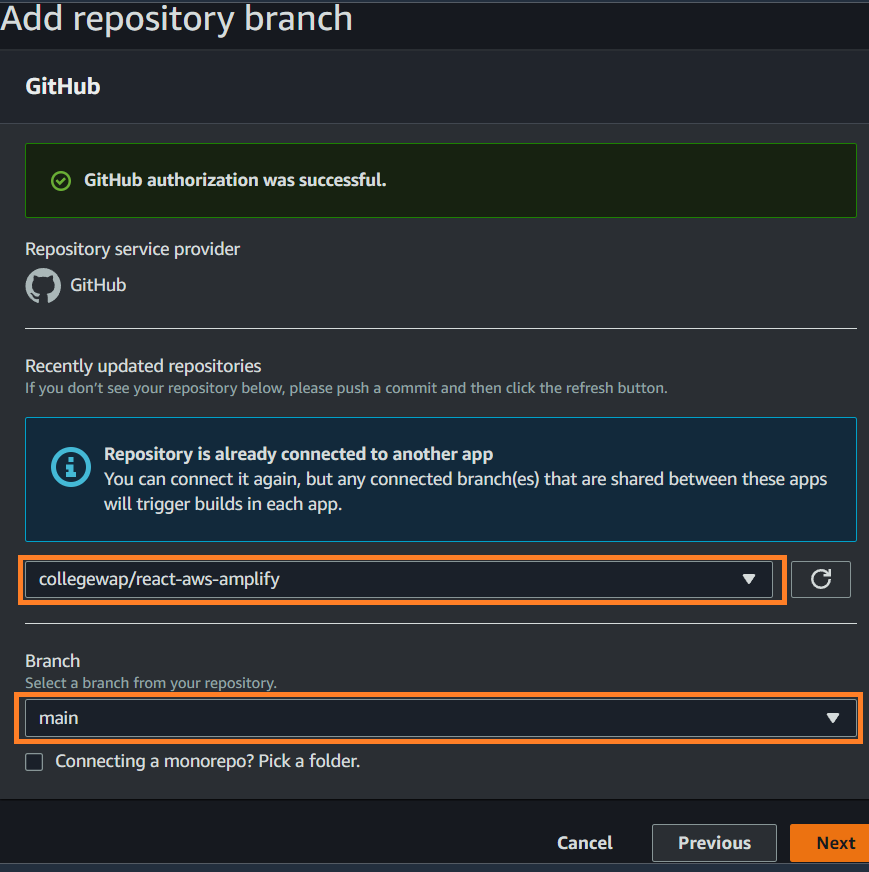
Select the repository and the branch you want to deploy and click Next.
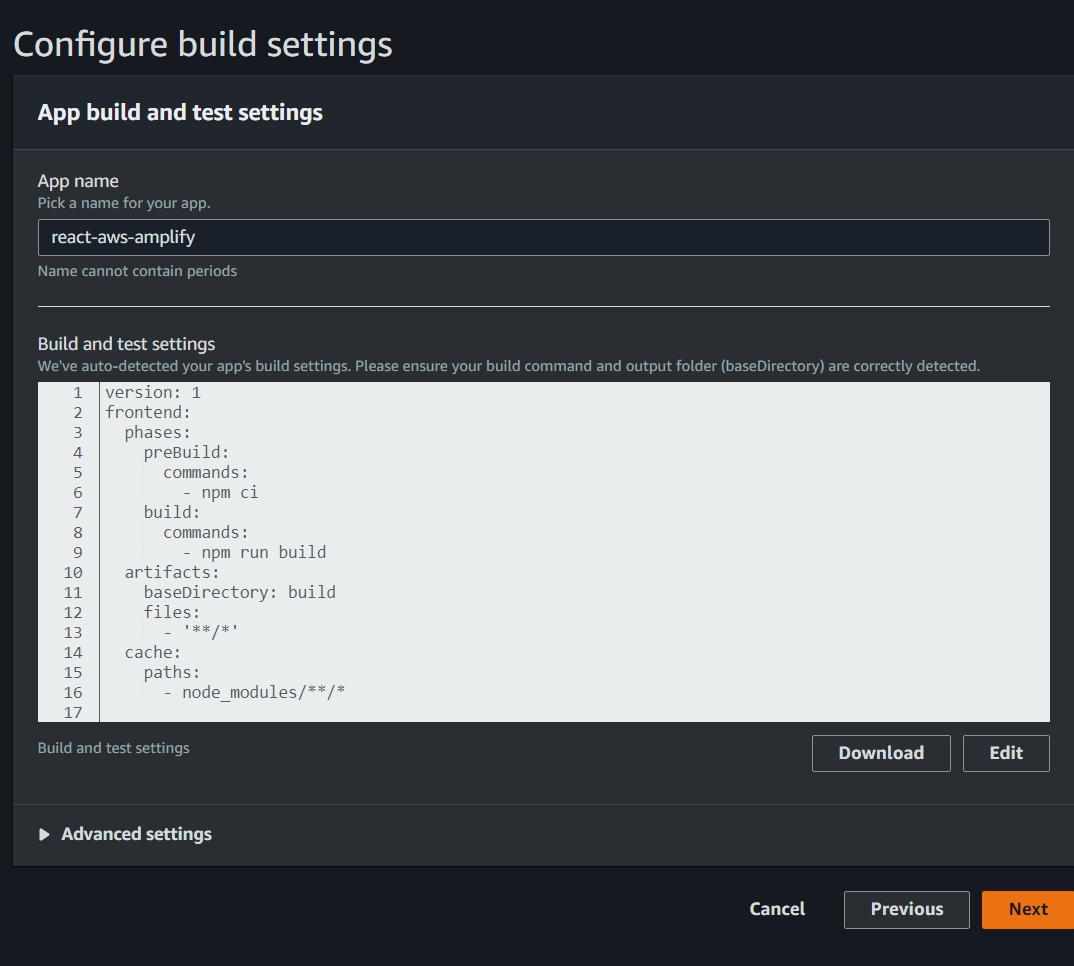
In the next step, you may change the app name if needed. You will see that the build script is automatically populated by AWS:
On the next page, review the settings and click on Save and Deploy.
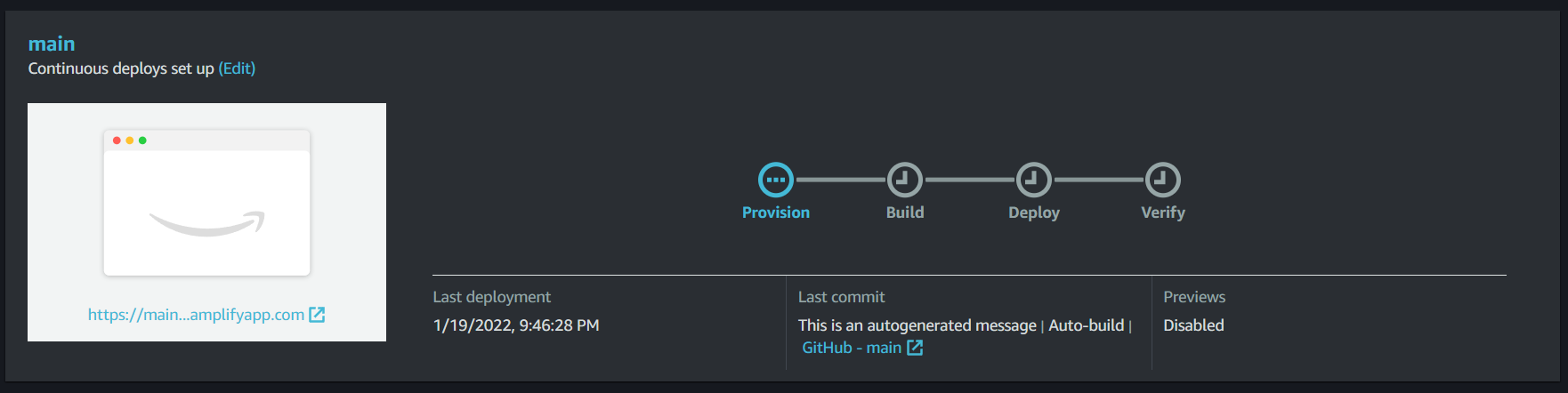
Now it will show different steps of build and deployment:
Once all the steps are completed, click on the link highlighted in the below image and you will see the deployed application.
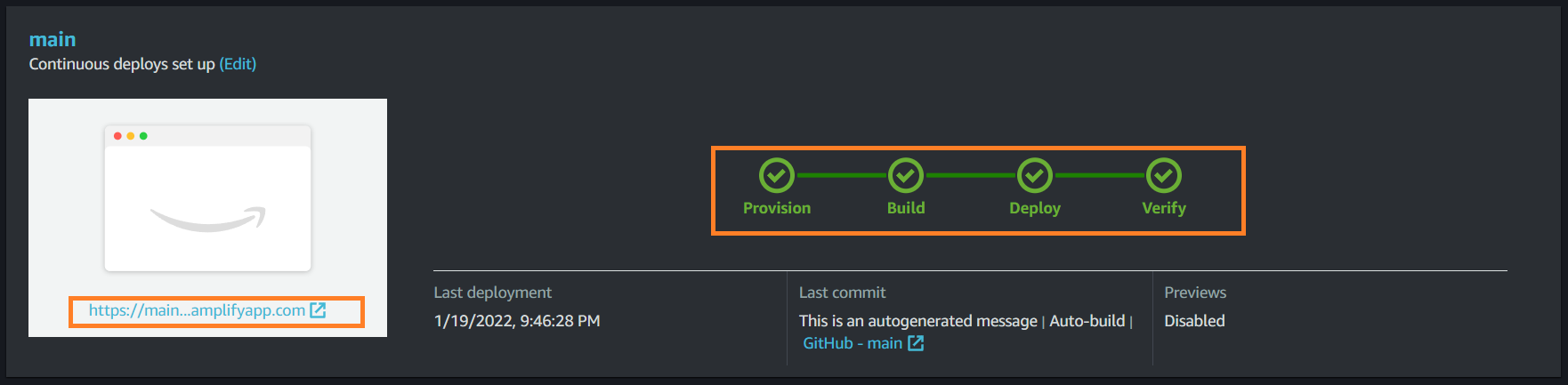
AWS will automatically trigger a build and deploy your changes when you push new changes to the main branch from next time.
Adding custom domain
You can select Domain Management under App Settings in the left navigation to add a custom domain.
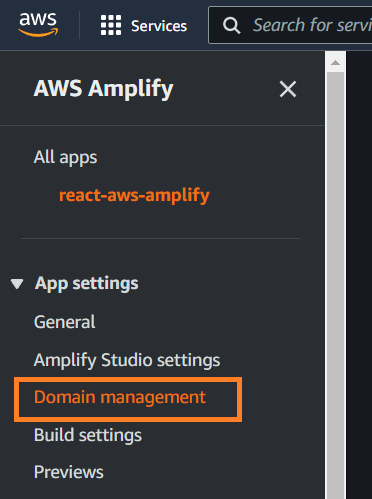
Click on Add Domain in the top right corner. After adding the domain, you will have to update your DNS records in your domain registrar.


